



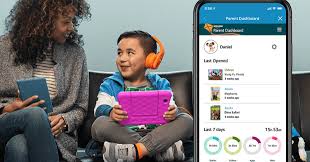
In a digital world, finding a safe, engaging, and educational space for children online is a top priority for parents. Amazon Kids+ (formerly known as Fire for Kids Unlimited) has become an incredibly popular solution, offering a vast, all-in-one subscription service packed with thousands of kid-friendly books, movies, TV shows, educational apps, and games.
It’s a “walled garden” of content designed to give children freedom while giving parents peace of mind. However, as children grow and their interests change, you may need to manage or cancel this subscription. This guide for 2025 will explore the features of Amazon Kids+ and provide a clear, detailed walkthrough on how to cancel your Amazon Kids+ subscription, no matter how you signed up.
What is Amazon Kids+? A World of Content for Children
Amazon Kids+ is a monthly subscription service that provides unlimited access to a massive, curated library of content for children aged 3-12. The service works across multiple devices, but it is most closely associated with Amazon’s own Fire Tablets and Kindle e-readers for kids.
Key Features of an Amazon Kids+ Subscription
- Vast, Curated Library: The service includes thousands of pieces of content from trusted brands like Disney, Nickelodeon, CBeebies, and LEGO. This includes age-appropriate videos, books, audible stories, games, and educational apps.
- Robust Parental Controls (Parent Dashboard): This is a core feature for parents. The online Parent Dashboard allows you to:
- Set age filters to ensure your child only sees age-appropriate content.
- Establish daily time limits for screen time.
- Set educational goals, such as reading for 30 minutes before games become available.
- View what your child has been watching, reading, and playing.
- Safe Environment: The platform is designed to be a safe space. There is no access to social media or unsafe web Browse, and no in-app purchases are allowed without parental approval.
- Works Across Devices: You can create up to four individual child profiles on a single subscription, each tailored to a specific age, and access the content on Fire tablets, Kindle, Fire TV, and through the Amazon Kids+ app on iOS and Android devices.
This controlled, content-rich environment makes it a simple and effective way to manage your child’s screen time.
How to Cancel Your Amazon Kids+ Subscription
The most important thing to know about canceling is that the method depends on where you initially subscribed. Deleting the app from a device will not cancel the subscription. You must use the correct platform to stop the recurring payments.
Method 1: Canceling Through the Amazon Parent Dashboard (Most Common)
If you signed up on the Amazon website or as part of setting up a Fire Tablet, this is the primary method.
- Go to the Parent Dashboard: On a web browser, navigate to parents.amazon.co.uk.
- Log In: Sign in with the Amazon account credentials you used for the subscription.
- Navigate to ‘Settings’: Find the menu (often represented by three lines) and select “Manage your Amazon Kids+ Subscription.”
- Initiate Cancellation: You will see your subscription details. Look for the option to “Cancel subscription.”
- Follow the On-Screen Prompts: Amazon will ask you to confirm your decision. You may be asked for a reason for canceling. Follow the steps to finalize the cancellation.
- Check for Confirmation: You will receive a confirmation email from Amazon. Your subscription will remain active until the end of the current billing cycle.
Method 2: Canceling Directly on a Fire Tablet
You can also manage the subscription from the device itself.
- From the adult profile on your Fire Tablet, swipe down from the top of the screen and tap the Settings (gear) icon.
- Tap “Apps & Notifications,” then “Manage All Applications,” then “Amazon Kids+.”
- Under “Manage your Subscription,” you will find the option to cancel.
Method 3: Canceling Through Apple or Google Play
If you subscribed to Amazon Kids+ through the app on an iPhone, iPad, or Android device (and not through Amazon directly), your subscription is managed by that app store.
On an iOS Device (iPhone/iPad):
- Open the “Settings” app.
- Tap your name/Apple ID at the top, then tap “Subscriptions.”
- Find Amazon Kids+ in your list of subscriptions and tap on it.
- Tap “Cancel Subscription” and confirm.
On an Android Device (Google Play):
- Open the Google Play Store app.
- Tap your profile icon in the top-right corner, then tap “Payments & subscriptions.”
- Select “Subscriptions,” find Amazon Kids+, and then choose “Cancel subscription.”
A Note on Third-Party Cancellation Services
You might come across third-party services like Unsubby that offer to manage all your digital subscriptions in one place. For a service like Amazon Kids+, where the cancellation path is clearly defined by how you signed up (Amazon, Apple, or Google), using an external service is an unnecessary step. The most effective way to cancel Amazon Kids+ is to identify your billing source and use that platform’s official cancellation process directly.
Conclusion: Safe Entertainment You Control
Amazon Kids+ provides an outstanding service for parents in the UK, offering a safe, fun, and educational digital playground for children. Its powerful parental controls and vast library deliver real value and peace of mind. By also providing a clear and accessible cancellation process, Amazon ensures that you are always in control. Understanding which platform manages your subscription empowers you to make changes with confidence, ensuring the service fits your family’s needs perfectly.
